We built a pale blue gradient the width of the tonal range a hazy sky actually uses, saved it at 8 bits per channel, and counted what survived: 27 distinct shades, each one 26 to 54 pixels tall down a 640-pixel image. Building the identical gradient at 16 bits and only dropping to 8 bits at the final save kept 255 shades instead, and nothing else about the picture changed.
Should you edit in 8-bit, or something higher?
Work above 8 bits per channel when:
- You are going to adjust levels, curves, white balance, or a shadow recovery tool before the file is finished. Any of those stretches whatever shades you already have, and 8-bit only gives you 256 to stretch.
- Your source already has more to keep. A camera RAW file, a scanned 16-bit TIFF, or an HDR render loses real information the moment it's flattened.
- You plan to export to a format built to hold it. Convert TIFF to PNG or convert HDR to PNG keeps the source's full depth right up to that last step.
8 bits per channel is fine when:
- The file is finished and you're exporting it, not editing it further.
- The target is JPG or WebP, both of which write 8-bit no matter what you feed them.
- The subject already fills most of the tonal range, the way an ordinary photograph does.
Bit depth and banding, measured
| What we measured | |
|---|---|
| Full 0-255 gradient, saved at 8-bit | 384 distinct shades, each 2 to 3 pixels tall |
| Hazy-sky gradient, saved at 8-bit | 27 distinct shades, each 26 to 54 pixels tall |
| That sky, levels-stretched after the 8-bit save | Still 27 shades, now spread across the full range |
| The same stretch, done on a 16-bit source before the final save | 255 shades |
| JPG or WebP, any source depth | Always written at 8-bit |
| PNG or TIFF, from a 16-bit source | Kept the full 16-bit |
| AVIF, from a 16-bit source | Kept 12-bit, the format's own ceiling |
What do 8-bit, 10-bit, and 16-bit actually count?
The number of shades a single colour channel can hold, nothing else. An "8-bit image" means 8 bits each of red, green and blue: 256 values per channel, about 16.8 million combinations combined. Going from 8 bits to 10 does not add 2 more shades, it raises 2 to a higher power: 8-bit gives 256 shades per channel, 10-bit gives 1,024, and 16-bit gives 65,536. FileFlip has no bit-depth slider in Advanced options; the depth is decided entirely by which format you convert into, which is what the rest of this page measures.
Where does banding show up first?
In the parts of a picture with the least going on, not the most. A photograph full of texture and noise hides a one-shade jump between neighbouring pixels; a smooth gradient like a sky, a UI background, or a rendered shadow has nothing to hide it behind. Our full-range gradient kept 384 distinct shades once saved at 8-bit, each band only 2 to 3 pixels tall, effectively invisible. The hazy-sky gradient, spanning a narrower slice of that range the way a real overcast sky does, kept only 27 shades, each one covering 26 to 54 pixels. Wider bands are what your eye catches.
Which formats store more than 8 bits per channel?
PNG and TIFF do, without asking. We wrote the same 16-bit source out to six formats and checked what came back with ImageMagick's identify -verbose: PNG and TIFF reported the full 16-bit depth, unchanged. AVIF reported 12-bit, matching the AV1 spec's own ceiling of 8, 10, or 12 bits. JPG and WebP both came back at a flat 8-bit, every time, because neither format has anywhere to put the rest. PNG's own specification lists 16 as a valid bit depth alongside 8, 4, 2 and 1.
HDR needs a caveat of its own. ImageMagick reports it back at 16-bit, but the Radiance RGBE format it's built on stores an 8-bit mantissa per channel plus one shared exponent byte per pixel. That buys HDR a huge dynamic range, room for a sunlit cloud and a shadow in the same file, rather than more steps within one exposure. Treat it as wide, not deep.
What happens when you convert a 16-bit file down to 8-bit?
Nothing, if that conversion is the final thing you do to the file. Something permanent, if you edit it afterward instead.
We took our hazy-sky gradient two ways. First, saved at 8-bit immediately, then levels-stretched to fill the full range, the way a "boost contrast" or "auto enhance" button would treat it. Second, levels-stretched first while still at 16-bit, and only saved to 8-bit as the final step. Same edit, same source, same output range.


Both images are the identical gradient, the identical stretch, and the identical 8-bit output format. The only thing that changed is whether the file was already flattened to 8-bit before the stretch ran. Full frame, no crop.
The left side is stuck at 27 shades no matter how far you stretch it, because a monotonic edit can only rearrange the shades a file already has, never invent new ones between them. The right side kept 255, because the file still had them to keep. This is the practical version of "banding shows up after I edited my photo": the edit didn't cause it, the earlier 8-bit save did, and the edit just revealed it.
Does dithering fix banding?
It hides banding without adding back a single shade.
We reduced our sky gradient to a deliberately harsh 16-colour palette twice: once as a plain quantization, once with Floyd-Steinberg error diffusion, ImageMagick's -dither FloydSteinberg.
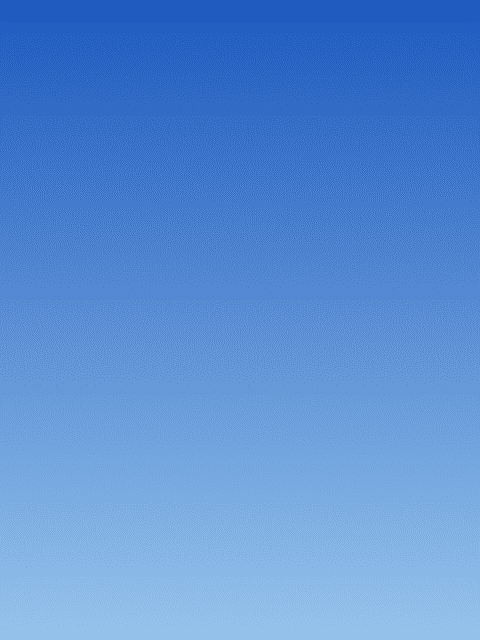

Same source, same 16-colour budget, only the dithering flag changed. Full frame, no crop.
Without dithering, the plain quantization left 10 solid bands, the widest one 112 rows of a 640-row image, a hard edge you can spot from across the room. With dithering on, the same 16 colours scatter pixel by pixel instead of settling into blocks: the largest solid patch anywhere in the image dropped to 5 pixels. Your eye averages that fine speckle into something that reads as a smooth gradient, even though the file still only has 16 real colours in it. Dithering is a trick played on the viewer, not a way to store more data, which is why it costs nothing and fixes nothing.
What does the extra bit depth cost you?
Storage, mostly, and only for formats that don't compress it away. We saved one photograph as an 8-bit TIFF and a 16-bit TIFF: 1,179,928 bytes against 2,359,584, almost exactly double, since TIFF here stores samples uncompressed and a 16-bit sample is twice the bytes of an 8-bit one. PNG barely noticed the same change, because DEFLATE compresses the padding away when there's no real extra detail behind it. Upconverting an already-8-bit photo to 16-bit recovers nothing either way, since the missing shades were thrown away before the file reached you. That's one instance of the wider lesson what a conversion actually costs you covers.
Common questions
Is 16-bit always better than 8-bit?
Only if there's real detail in those extra bits to begin with. Upconverting an already-8-bit JPG or PNG to 16-bit adds file size and recovers nothing, since the shades between its 256 steps were never recorded. Sixteen bits only pays off starting from a source that actually has more: a RAW file, a scan, or a render.
Why did my photo only start banding after I edited it?
The edit stretched shades the file already had too thin; it didn't invent the problem. An 8-bit photo with a narrow tonal range in the sky holds that gradient smoothly right up until a levels or contrast adjustment spreads those same few dozen shades across the full range, exactly what our stretched-gradient test above measured.
Does AVIF really support more than 8-bit colour?
Yes, up to 12-bit, which is the ceiling the AV1 codec it's built on allows. Our own AVIF encodes topped out there from a 16-bit source, matching the format's published spec rather than exceeding it.
Can I set a specific bit depth when I convert a file on FileFlip?
No, and that's deliberate. The target format decides it: convert to PNG or TIFF and your source's depth is kept; convert to JPG or WebP and it's flattened to 8-bit, every time.
Convert between them
FileFlip converts TIFF to PNG and HDR to PNG directly in your browser, on a WebAssembly build of ImageMagick. The file never leaves your machine, there's no account, and nothing is queued on a server. Both routes keep the source's bit depth wherever PNG has room for it, and only fall back to 8-bit if that's what you started with.
See the TIFF format reference and HDR format reference for what else each container can hold.
How we measured this
- Gradients: 480 by 640 pixels, ImageMagick's
gradient:at 16-bit depth, reduced with-depth 8where the test called for it. Full-range ranrgb(20,60,140)torgb(235,240,250); the hazy-sky gradient ranrgb(196,206,216)torgb(208,216,222), a narrow, desaturated slice standing in for an overcast sky. - Shade and band counts: one pixel column read back with
magick identify -depth 16 txt:-, since the gradient is uniform across each row; the dithering comparison scanned every pixel, since dithering varies across a row too. - Levels stretch: ImageMagick's
-auto-level, a synchronized stretch that scales every channel by the same factor so it doesn't shift the hue, applied either to the already-8-bit gradient or to the 16-bit one before its only-depth 8conversion. - Dithering: a separate, more saturated gradient,
rgb(30,90,190)torgb(150,195,235), reduced to-colors 16with+ditherand again with-dither FloydSteinberg. The desaturated sky gradient above had too little hue for 16 colours to divide up meaningfully either way. - Format depth: the same 16-bit source written to JPG, WebP, AVIF, PNG, TIFF and HDR with no extra flags, checked with
magick identify -verboseand itsDepth:line. - File size: one 768 by 512 Kodak True Color image, written to TIFF at
-depth 8and-depth 16with ImageMagick's default settings. - Tools: ImageMagick 7.1.2-28 Q16-HDRI, on macOS.
- Caveat: these are synthetic gradients built to isolate bit depth cleanly, not photographs. A real sky has noise and haze a camera sensor adds on its own, which masks a little of the banding a mathematically perfect gradient shows, so treat our shade counts as a worst case, not an average photo.
The script is in the repository at apps/nextjs/scripts/measure-bit-depth.mjs. Run it and you should get these numbers back.