An RGB triplet like 235, 90, 60 is three numbers, not a colour, until something says which colour space they're plotted in. iPhones have shot in Display P3 by default since the iPhone 7, so a lot of the photos you convert are already wide-gamut. We broke that link on purpose, two different ways, and measured what a photo does when the numbers stay the same but the tag doesn't: 12% flatter at the median, or 14% more saturated, depending on which way the mistake runs.
What should you check first?
Open the file in something that reads embedded colour, like Preview, Photoshop, or a current browser, and see if it still looks right there.
- It looks right in a colour-managed viewer. The profile survived. Whatever looked wrong was a different app ignoring it, not the file being damaged.
- It looks wrong everywhere, even in Preview. The profile is gone or was never applied correctly, and no amount of re-opening it fixes that on its own.
- You're about to convert it and want to keep the tag. Convert HEIC to JPG or convert TIFF to JPG and FileFlip carries the embedded profile through untouched, which we measured below.
Colour spaces at a glance
| sRGB | Display P3 | Adobe RGB (1998) | |
|---|---|---|---|
| Gamut volume vs sRGB | Baseline | ~50% larger | ~60% larger |
| Defined by | IEC 61966-2-1 | Apple, based on DCI-P3 primaries | Adobe |
| Where you'll meet it | The web's default assumption | iPhone photos since 2016, most current displays | DSLR/mirrorless "Adobe RGB" JPEG setting, print workflows |
Gamut volumes are the W3C's own comparison, measured in million cubic Lab units: sRGB at 0.820, Display P3 at 1.233, Adobe RGB at 1.310. Apple's own developer materials put the P3-over-sRGB gain at "25 percent larger" using a different metric, area rather than volume, which is why you'll see both numbers depending on the source.
What does dropping the colour tag actually do to a photo?
It doesn't touch a single pixel value. It changes what those values mean, and a wide-gamut photo is the one that shows it.
We tagged a Kodak test photo as Display P3, correctly, using ImageMagick's own colour management, then broke the link two ways. First, we stripped the tag and let it get read as sRGB, the mismatch you get when software somewhere in a pipeline drops an embedded profile. Second, we took the reverse case: an sRGB photo whose numbers get read as if they were already Display P3, the mismatch that shows up on wide-gamut screens that don't colour-manage untagged files. We ran both across all 12 images in the Kodak True Color set and measured SSIM and mean saturation against the correctly-tagged original.
| Scenario | Median SSIM | Range | Saturation vs. correct |
|---|---|---|---|
| Read with its actual profile | 0.9995 | 0.9971 to 0.9998 | Matches |
| Wide-gamut tag dropped, read as sRGB | 0.9954 | 0.9789 to 0.9993 | 12% flatter |
| sRGB numbers read as Display P3 | 0.9886 | 0.8713 to 0.9987 | 14% more saturated |
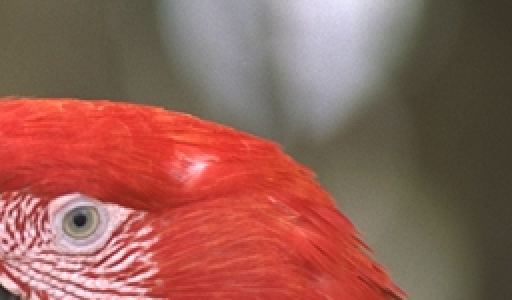 Read with its actual profileSSIM 0.9971, the reference
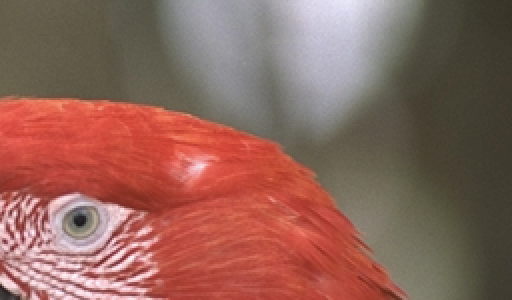 Tag dropped, read as sRGBSSIM 0.9789, 14% flatter
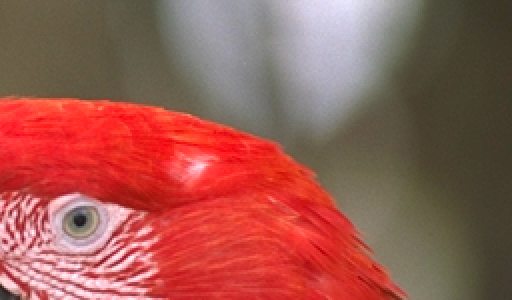 sRGB numbers read as Display P3SSIM 0.9562, 15% more saturated
No pixel value changes between these three files. Only which colour space they're read against does. Magnified 2x from a 256 by 150 pixel crop of Kodak image 23.
Neither direction is hypothetical. The first is what happens when a tool somewhere between the camera and the screen quietly drops an embedded profile. The second is what a non-colour-managed app does to an untagged file on a wide-gamut display: it paints the numbers straight onto a bigger set of primaries than they were meant for. Both leave every byte of the file identical and every colour wrong.
What does an ICC profile actually do?
It's a small table, embedded in or shipped alongside the image, that maps that file's numbers to a device-independent reference space. The ICC specification itself describes this as connecting one colour encoding to another, which is the whole job: a colour-managed viewer reads the profile, maps your file's 235, 90, 60 into that reference space, then maps it again into whatever the screen in front of you needs to show the same colour. Nothing about the stored numbers ever changes; only the mapping does.
Skip that step and there's no correct answer, only a guess. The PNG specification says as much directly: without gAMA, cHRM, sRGB or iCCP data, the pixels are "uncalibrated device-dependent color," not any specific space. In practice, nearly every viewer guesses sRGB when no tag is present, which is exactly the assumption that turns a real Display P3 file flat if its tag goes missing along the way.
What colour space does my phone actually shoot in?
Display P3, if it's an iPhone, and has been since the iPhone 7. Apple's own device-compatibility documentation describes wide-gamut capture as automatic by default on every supported model, controlled by a capture-session setting that ships turned on. You don't turn this on. It's already on.
Most Android phones are less consistent about it and commonly still default to sRGB capture, so the wide-gamut case is much more of an iPhone problem in practice. A dedicated camera is the opposite of automatic: open the Color Space menu on a Canon, Nikon, Sony or Fujifilm body and you'll almost always find sRGB selected, with Adobe RGB sitting one option below it for photographers editing toward a print workflow.
A wide colour gamut is a separate axis from a wide dynamic range, but the same iPhone photos often carry both: a Display P3 gamut for how saturated a colour can be, and an HDR gain map for how bright a highlight can go. HDR images, and what happens when they are not covers the second one.
Which image formats keep the colour profile, and which drop it?
HEIC, JPG, TIFF and PNG all have a place to store one, and FileFlip's converter keeps it there.
We tagged a file as Display P3, ran it through the exact conversions FileFlip performs, HEIC to JPG and TIFF to JPG, and checked the result with exiftool and macOS's own ColorSync reader, sips. Both call the output Display P3, and the pixel bytes came back identical to the source, zero pixels different, going TIFF to PNG and back. The conversion doesn't touch the numbers or the tag. If a photo looks wrong after using FileFlip, the mismatch was already there before the file reached us.
Not every format plays along. In the same test, plain BMP output had no profile at all once sips looked at it, because the format has nowhere standard to put one. That's outside what this post's formats cover, but it's worth knowing if you're exporting somewhere older than JPG or PNG.
How do you convert a photo without wrecking the colour?
Convert between formats that both support embedded profiles, and don't let anything in between strip the file's metadata.
The formats named here, HEIC, JPG, TIFF and PNG, all keep an ICC profile intact through a FileFlip conversion, confirmed above. Where it actually goes wrong is usually somewhere else in the chain: an old image editor that only ever assumed sRGB, a CMS or messaging app that strips metadata on upload, or a screenshot tool that flattens whatever's on screen without saving how it should be interpreted. What a conversion actually costs you covers the same idea for the other kinds of data a file can lose in transit, and the mechanism is identical: something the destination has nowhere to put simply doesn't survive.
If you're not sure whether a specific file kept its tag, running exiftool -ICC_Profile against it on the command line, or a quick look in Preview's Tools > Show Inspector on a Mac, both name the embedded profile directly.
Common questions
Why does my photo look different in one app than another?
Because one of them is reading the embedded profile and the other one isn't. A colour-managed app, current browsers, Preview, Photoshop, maps the file's numbers correctly regardless of which colour space they were written in. An app that assumes every file is sRGB shows a wide-gamut photo exactly as flat as our measurements above.
Does converting HEIC to JPG lose colour accuracy?
Not from the format change itself. We measured the profile and the pixel values surviving HEIC to JPG untouched. What a JPG can't hold onto is a 10-bit HDR gain map, which some HEIC photos carry alongside the base image; see how to open HEIC files on Windows for what else gets left behind in that specific conversion.
Can I fix a wrong-looking photo by just deleting its colour profile?
No, and it usually makes things worse. Stripping the tag doesn't undo a mismatch, it removes the only piece of information that could have corrected one. If a photo looks wrong, the fix is finding a copy that still has its original profile, not removing the profile from the one you have.
Is Display P3 the same thing as HDR?
No, they're unrelated. Display P3 is about which colours a file can represent at all, its gamut. HDR is about how much brightness range those colours can carry. An HDR photo needs a wide colour gamut to look right, but a wide-gamut photo isn't automatically HDR.
Convert your photos
FileFlip converts HEIC to JPG and TIFF to JPG entirely in your browser, on a WebAssembly build of ImageMagick. Nothing uploads, there's no account, and the embedded colour profile travels with the file exactly as measured above.
For the format details, see the HEIC, JPG, TIFF and PNG format references.
How we measured this
- Colour-space experiment: the 12 images from the Kodak True Color test set, each an untagged 768 × 512 PNG. Each was assigned macOS's own sRGB ICC profile, then colour-converted to Display P3 with
magick input.png -profile srgb.icc -profile p3.icc, which is genuine colour management, not a relabel. "Tag dropped" strips that profile with-stripand reads the same numbers as sRGB. "Read as Display P3" instead assigns the P3 profile directly to the untouched source,-profile p3.iccwith no source profile present, then converts that mislabelled file to sRGB for comparison, so all three files land in the same colour space for measurement. - Metrics: SSIM from FFmpeg 8.1.2's
ssimfilter,Allvalue, against the correctly-tagged version. Saturation is the mean of the S channel after-colorspace HSB. - Format-preservation check: a Display P3-tagged TIFF, converted with ImageMagick 7.1.2 to HEIC, JPG, PNG and back, the same library FileFlip runs compiled to WebAssembly. Profile presence checked with
exiftool -ICC_Profile:ProfileDescriptionand with macOS'ssips -g profile, which reads through ColorSync rather than ImageMagick's own metadata reporting. Pixel identity checked withmagick compare -metric AE. - Caveat: our Display P3 file was built by colour-converting an sRGB photo, not captured by a real camera. A native P3 capture pushes closer to the edge of the gamut in places our synthetic conversion doesn't reach, so a real iPhone photo could show a slightly larger effect than the medians above.
Reproduce it with magick, exiftool and sips from the commands above; there's no dedicated script for this one yet.