We tagged the same 512×768 pixel PNG with DPI values from 30 to 600 and ran it through FileFlip's own conversion engine. The pixel data never changed, byte for byte, confirmed with a checksum. What did change: converting that PNG to a PDF turned the DPI tag into the page's actual size on paper, shrinking from 7.1 inches wide at 72 DPI to 1.7 inches at 300.
What actually depends on the DPI tag?
Almost nothing you're likely doing with the file today.
- You're printing something and a lab asked for "300 DPI." The tag isn't what matters, the pixel count is. The table further down converts print sizes straight into the pixels you need.
- You're turning the file into a PDF. Convert PNG to PDF and FileFlip reads the DPI tag to size the page, which we measured below.
- You're putting the image on a website or in an app. Skip the tag entirely. Nothing that renders on a screen reads it.
- You just need the tag to survive a format change. Convert JPG to TIFF and it comes through unchanged, also measured below.
DPI at a glance
| Where the file goes | Does the DPI tag do anything? | What actually controls the result |
|---|---|---|
| A browser, an app, any screen | No, ignored completely | The image's pixel width and height |
| A commercial print or photo lab | Indirectly | Pixel count relative to the print size, usually around 300 pixels per inch |
| FileFlip's PNG to PDF route | Yes, directly | Sets the PDF page's physical size in points |
| FileFlip's JPG to TIFF route | Carries over unchanged | Nothing reads it until a later step opens the file and checks |
What is DPI, and how does it connect pixels to inches?
A pixel has no physical size on its own. It's a cell in a grid, and the grid doesn't know how big an inch is until something tells it.
DPI, or PPI when someone means pixels specifically, is a single number saved alongside the pixels: how many should occupy one inch when the file prints. PNG stores it in a chunk called pHYs, TIFF in tags named XResolution and YResolution, JPEG in its own header block. The PNG spec calls its version the "intended pixel size and aspect ratio to be used in presenting the image," and TIFF's spec defines the same idea for its own tags.
- 72 DPI7.11 in
- 150 DPI3.41 in
- 300 DPI1.71 in
- 600 DPI0.85 in
Same 512x768 pixel PNG, same file, only the DPI tag changed. Printed width is pixels divided by DPI: raise the number and the same grid claims a smaller sheet of paper.
Why is "save at 300 DPI" bad advice?
Because it tells you to set a number instead of to have enough pixels.
Writing 300 into a file's DPI tag doesn't add a single pixel to the grid. A 3,000 by 2,000 pixel file supports a 10 by 6.7 inch print at that number. A 600 by 400 pixel file, tagged the same way, just claims a 2 by 1.3 inch print, and the pixels behind both claims stay exactly what they were. We checked this directly: we tagged the same PNG with seven DPI values from 30 to 600, decoded each one back to raw pixels, and compared them with ImageMagick. Every pair came back with zero pixels different, and a SHA-256 of the decoded pixel stream was identical across all seven files.
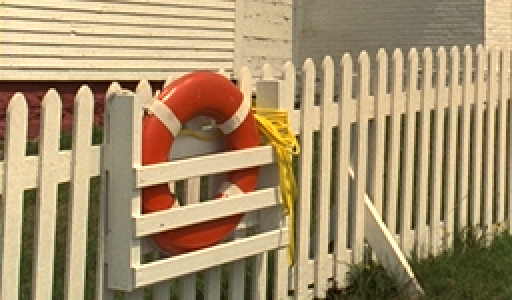
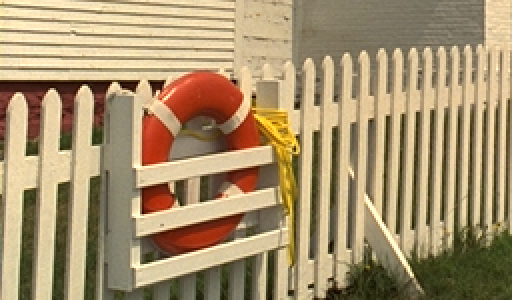
Drag the slider. Both crops decode to the same bytes; ImageMagick's pixel-difference check reports zero. Magnified 2x from a 256 by 150 pixel crop of Kodak image 19.
A real fix for a low-resolution file is a resize step that recalculates every pixel onto a bigger grid, guessing at detail that was never captured, a wholly different operation from editing this tag. Editing the tag alone changes what a printer is told, not what it would actually print.
What does a printer actually need?
More dots than your file has pixels, which is easy to miss since both get called "DPI."
An inkjet or laser printer builds a colour from a handful of ink colours, so reproducing one pixel usually takes several dots blended together: four to six of them, per Wikipedia's summary of dot pitch and dithering, and a consumer inkjet is typically capable of 300 to 720 dots per inch on its own. The DPI on a printer's spec sheet and the DPI in your image file aren't measuring the same thing, one counting ink dots and the other counting pixels.
Print labs commonly ask for 300 pixels per inch, high enough that individual pixels stay invisible at normal reading distance without demanding more detail than most cameras or printers can use. A poster viewed from across a room gets away with far less, since your eye can't resolve the extra pixels at that distance either.
How do you work out the pixel count for a print size?
Multiply the print size in inches by the pixels-per-inch you're targeting, once for each dimension.
| Print size | Pixels needed at 300 PPI | Pixels needed at 150 PPI |
|---|---|---|
| 4 × 6 in | 1,200 × 1,800 | 600 × 900 |
| 5 × 7 in | 1,500 × 2,100 | 750 × 1,050 |
| 8 × 10 in | 2,400 × 3,000 | 1,200 × 1,500 |
| 11 × 14 in | 3,300 × 4,200 | 1,650 × 2,100 |
| 16 × 20 in | 4,800 × 6,000 | 2,400 × 3,000 |
A 12-megapixel photo, 4,032 by 3,024 pixels, clears the 300 PPI bar for an 8 by 10 easily and lands almost exactly on it at that size. Stretch the same file to a 16 by 20 poster and it works out to roughly 150 PPI, the size where distance rather than density is doing the work.
What happens to the DPI tag when you convert a file?
Depends entirely on which pair you're converting, and one of FileFlip's own routes does something we didn't expect until we measured it.
JPG to TIFF stays inside the image family, so FileFlip runs it through ImageMagick and the DPI tag rides along untouched. We tagged a PNG at 300 PPI, converted it to JPG and then TIFF with no density flag anywhere in the call, and the TIFF reported the same 300 PPI back. Even an untagged PNG carried a value through: ImageMagick's 72 PPI default showed up explicitly on the JPG and then the TIFF.
PNG to PDF crosses from an image into a document instead. FileFlip's document worker opens the PNG through mupdf, the same engine behind every PDF the tool writes, and mupdf turns the DPI tag directly into the page's size rather than storing it as a separate field. We fed it the same PNG at all seven tags and read the page bounds back:
| DPI tag | PDF page size |
|---|---|
| 30 | 7.11 × 10.67 in |
| 50 | 7.11 × 10.67 in |
| 72 | 7.11 × 10.67 in |
| 96 | 5.33 × 8.00 in |
| 150 | 3.41 × 5.12 in |
| 300 | 1.71 × 2.56 in |
| 600 | 0.85 × 1.28 in |
Above 72, the page shrinks exactly the way pixels-divided-by-DPI predicts. Below it, at 30 and 50, the page comes out identical to the 72 DPI row instead of larger, the opposite of what the arithmetic alone suggests: mupdf appears to floor the tag at 72 rather than ever inflate a page past the PNG's raw pixel size in points. We haven't found that floor documented anywhere in mupdf's own docs, so treat it as what this build does, not a guarantee for every PDF tool.
Common questions
Does changing the DPI tag make an image sharper or blurrier?
Neither. We compared decoded pixels across seven different DPI tags on the same image and found zero difference, byte for byte, every time.
What DPI should I use for a web image?
None, it doesn't matter. We loaded the same PNG tagged at 72 and at 300 DPI as plain <img> elements and measured the rendered size in a browser: both came out 512 by 768 CSS pixels. A browser sizes an image from its pixel dimensions, never this tag.
Does converting a file keep its DPI tag?
It depends on the pair. Going between two image formats, like JPG to TIFF, carries the tag through unchanged, which we measured above. Going from an image into a PDF doesn't keep a separate tag at all; the value gets folded into the page's physical size instead.
How many pixels do I need for an 8x10 print?
2,400 by 3,000 pixels gets you a true 300 PPI print at that size, per the table above. Fewer pixels still print, just at a lower effective density.
Does typing a new number into a resolution box make my print sharper?
Only if that step also resamples the image, which recalculates the pixel grid at a new size. Editing just the tag relabels the same pixels at a different intended print size and adds nothing.
Convert between them
FileFlip converts PNG to PDF and JPG to TIFF entirely in your browser, on the same mupdf and ImageMagick libraries this post measured. Nothing uploads, there's no account, and the DPI tag survives or gets folded into the page exactly as described above, depending on the route. The same kind of header tag controls colour instead of size, covered in colour profiles, and why your photo changed colour, and DPI shares a file header with the longer list of camera data in what your photos are carrying.
How we measured this
- Source image: one file from the Kodak True Color test set, kodim19, 512 × 768 pixels.
- DPI tags: written with ImageMagick 7.1.2-28,
magick kodim19.png -density NxN -units PixelsPerInch out.png, at 30, 50, 72, 96, 150, 300 and 600. - Pixel-identity check: each tagged file decoded to raw RGBA with
magick file.png -strip rgba:-and hashed with SHA-256; all seven hashes matched, and matched the untagged source.magick compare -metric AEbetween the 72 and 300 DPI files reported zero differing pixels. All seven tagged files were 671,507 bytes, 31 bytes more than the 671,476-byte untagged original, the cost of thepHYschunk itself. - PDF page size: the
mupdf1.28.0 Node package, callingmupdf.Document.openDocument()on each tagged PNG anddocument.layout(595, 842, 11), then readingpage.getBounds(), matchingopenWithMupdfinsrc/workers/document.worker.ts. Each document was then written throughmupdf.DocumentWriter(buffer, "pdf", ""), mirroringrunMupdfin the same file, to confirm the written PDF's page matched the reported bounds. - TIFF density survival: the 300 PPI PNG converted to JPG and then to TIFF with ImageMagick 7.1.2-28,
magick in.ext out.ext, no density flag and no-strip, matching the plainimage.writecall insrc/workers/image.worker.ts. Repeated with an untagged source to check the default. - Browser render check: the 72 and 300 DPI PNGs embedded as
<img>elements in a static page, loaded in Chromium via Playwright, readingnaturalWidth/naturalHeightandgetBoundingClientRect(). - Caveat: the 72 DPI floor in mupdf's page sizing is something we measured this build doing, not a documented feature we could find written down, so don't assume every PDF tool floors the same way.
Reproduce the DPI-tag and TIFF checks with magick and identify using the commands above; there's no dedicated script for the mupdf page-size check yet, but the commands in this section are the whole test.