We built one page two ways, real text and a scan of the same page, then ran both through FileFlip's own PDF-to-Markdown route. The text version came back as 218 words of Markdown. The scanned version came back as one byte: nothing extracted, no error, no placeholder. That single byte is the entire difference a converter can see.
Does your PDF have text or is it a scan?
Try to select a single word on the page.
- If a word highlights, the page has real text in it. Convert the PDF to Markdown and you get the words back as plain text, headings and all.
- If nothing highlights, the page is one embedded image with no text behind it. Converting to Markdown or DOCX will not produce words, because there are none in the file to find. Convert the pages to PNG instead, or read on for where OCR fits.
What's actually different between a text PDF and a scanned PDF?
A text PDF stores each line as positioned text objects, a font, a size and a string of characters, the drawing-instructions structure covered in what a PDF really is. A scanned PDF stores one flattened photograph per page and nothing else.
| Text PDF | Scanned PDF | |
|---|---|---|
| Select a word | Works | Nothing highlights |
| Search with Ctrl+F | Finds matches | Finds nothing |
| What's on the page | Positioned text objects | One embedded photograph |
| Converts to Markdown as | The actual words | An empty file |
| Converts to PNG as | A rendered page image | A rendered page image |
| Size for the same page (measured, see below) | 127 KB | 269 KB at a 300 DPI scan |
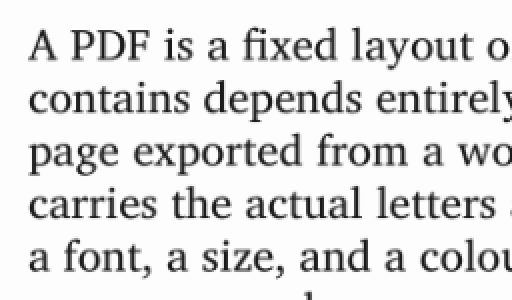
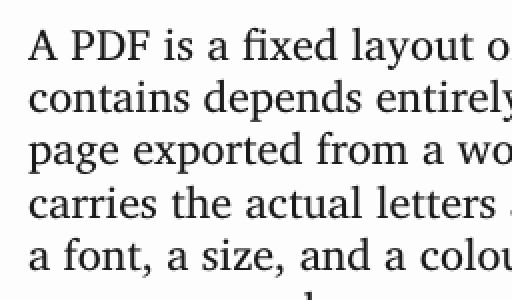
Drag to wipe between them. Both were rendered through FileFlip's own PDF-to-PNG route at its default scale. Looking at the page tells you nothing; only trying to select a word does. Magnified 2x from a 256 by 150 pixel crop of the body paragraph.
What happens when you convert a PDF with no text layer?
Nothing arrives on the other end, and the app doesn't tell you why.
We built a one-page PDF with a real paragraph, then rendered that same page to an image and wrapped the image back into a PDF with no text layer, the way a scanner would. Both files look identical on screen. We ran each through the exact route the PDF-to-Markdown worker uses: mupdf extracts each page's text runs into HTML, and pandoc turns that HTML into Markdown.
| Source | Words extracted | Markdown file size |
|---|---|---|
| Text PDF | 218 | 1,191 bytes |
| Scanned PDF | 0 | 1 byte |
The scanned page's HTML comes back as an empty <div>. Not a broken image tag, not a note that a picture was skipped, nothing at all, because mupdf's text extractor only ever looks for text runs and the page has none. Converting a scanned PDF to Markdown, DOCX, or any other text format produces a technically valid, functionally empty file every time.
How does a PDF end up with no text in it?
Almost always because something rasterized the page before the PDF was made.
A scanner or a phone camera app photographs a sheet of paper and drops the photo into a PDF wrapper, one image per page, because PDF is the format everyone expects to receive. A fax gateway does the same thing to a fax. Neither ever sees the original letters as characters, only as ink on a page, so there is no text to write into the file.
The opposite case is reassuring: a PDF made by exporting from Word, Google Docs, or Markdown keeps real text almost without exception, because the export writes positioned text objects directly rather than photographing anything. We built our own test file exactly that way, through the same pandoc-then-mupdf route FileFlip's own Markdown-to-PDF conversion uses, and every character came out selectable.
Can you run OCR on a scanned PDF to get the text back?
Yes, but that is a different job from converting a file, and FileFlip does not do it.
OCR looks at the pixels of a scanned page and guesses which letters they form. Conversion reads the bytes a file already has and writes them into another format without guessing at anything. FileFlip's own image-to-PDF conversion pages already say as much about the reverse direction: turning a photo into a PDF places the picture in the document as a picture, and no text is recognised out of it. The same holds true going the other way.
If you need the words out of a scan, Google Drive can run OCR when you open a PDF or image with Google Docs, and Tesseract is a free, open-source OCR engine you can run yourself if you'd rather not upload the file anywhere. Either one reads pixels and guesses text, so proofread what comes out, especially on a blurry or handwritten scan.
What can you do with a scanned PDF's pages instead?
Convert them to images. That keeps the page usable even though it never had text.
FileFlip converts a PDF's pages to PNG at roughly 144 DPI in opaque RGB, and it does this whether or not the source page ever had a text layer, because rendering a page and reading its text are two separate steps. A five-page PDF produces five PNG files, one per page, which you can then view, print, or drop into a document that wants an image rather than a PDF.
What you get back is still a picture of the words, not the words. It opens anywhere a PDF reader can be a hassle to install, but you still can't search it, copy from it, or reflow it onto a smaller screen. For that you need OCR first, run separately, on the images.
Common questions
Can you search a scanned PDF with Ctrl+F?
No. Search and select both depend on the same text layer, so a page with no selectable text also returns no search results, in every PDF reader we've checked.
Why can I select text on some pages of a PDF but not others?
The PDF is mixed-origin: some pages were exported digitally and some were scanned in, which is common with a cover page, a signed form, or an appendix stapled onto an otherwise digital report. Test each page separately rather than assuming the whole file is one or the other.
Does zooming in tell you whether a PDF is scanned?
Yes, as a backup to the selection test. Real text is drawn from vector outlines, so it stays crisp at any zoom level. A scanned page is a fixed-resolution photograph, so zooming far enough always finds soft edges and pixel noise, even when the two pages look identical at a normal reading size.
Does a PDF exported from Word or Google Docs always have real text?
Yes, in effect. Both write positioned text objects directly into the PDF rather than photographing a rendered page, so the export keeps every character selectable unless someone rasterizes it afterward on purpose, which is a separate, deliberate step.
Convert between them
FileFlip converts PDF to Markdown and PDF to PNG inside your browser, on a WebAssembly build of mupdf and pandoc. The file is never uploaded, there's no account, and nothing is queued on a server. Drop a PDF in and FileFlip reads whatever text objects the file actually has; it can't add text that was never there.
For more on what a conversion keeps and drops in general, see what a conversion actually costs you. For the format details, see the PDF format reference and the PNG format reference.
How we measured this
- Text PDF: a one-page, 420×595pt document built from a Markdown source through
pandocto HTML andmutool convertto PDF, the same two-step route FileFlip's own Markdown-to-PDF conversion uses. - Scanned PDF: the text PDF rendered to a 1,750×2,480px RGB PNG at 300 DPI with
mutool draw, then wrapped back into a single-page PDF withmutool convert -O compress-images, so it carries a compressed page image and no text layer, the way a scanning app's output would. - Conversion test: each PDF's text run to
mutool convert -F html, the same extraction FileFlip's PDF-to-Markdown route uses, then throughpandoc -f html -t markdownwith the same style-stripping the app's document worker applies before handing HTML to pandoc. - Size comparison: both files measured directly with no compression re-run. At 150 DPI the scan came to 137,556 bytes and at 200 DPI 170,673 bytes, both already bigger than the 126,874-byte text PDF; the 300 DPI figure in the table is a representative, not a worst-case, scan quality.
- Tools: mupdf 1.26 (
mutool), pandoc 3.10.2, ImageMagick 7.1.2-28, on macOS. - Caveat: our text PDF embeds two full font subsets, which makes it larger than a minimal text PDF would be. The comparison still favours the scanned file being smaller, and it isn't, which is the point: even with that overhead working against it, the text version came in under half the size.