We encoded the same ten seconds of footage twice at an identical quality setting: once as filmed, once with a single frame frozen for the full ten seconds. The frozen version came out 4 to 8 times smaller, depending on how hard we pushed the quality, and nothing about the format changed between the two runs. That gap is the entire mechanism. A codec stores a full picture only when it has to and spends the rest of its budget describing what moved since the last one.
Will your file actually get smaller?
A screen recording, a talking head, or a static product shot shrinks hard, because most of every frame after the first is unchanged. A sports clip, a fireworks show, or heavy film grain barely shrinks, because almost nothing in it repeats from one frame to the next.
- Mostly-still footage: expect a real drop from raising compression or lowering bitrate.
- Busy, high-motion footage: expect a much smaller drop at the same settings, because there is less redundancy to remove in the first place.
- The container is a separate question. Convert MOV to MP4 and, if the video inside is already H.264 or H.265, FileFlip copies the stream instead of re-encoding it, so this step costs you nothing regardless of how busy the footage is.
What is a keyframe?
A keyframe, also called an I-frame, is a complete picture that decodes on its own, with no reference to any other frame. Every frame after it, up until the next keyframe, is a P-frame or B-frame that only stores what changed relative to a nearby frame, so a player needs the last keyframe in hand before it can show anything.
| Keyframe | Frame in between | |
|---|---|---|
| What it stores | A full picture | Only what changed since a nearby frame |
| Size on our clip, CRF 23 | 485 KB average | 2 to 102 KB, 22 KB average |
| How often | Once at the start, then whenever the encoder decides | Every frame that is not a keyframe |
Our own encode above placed its second keyframe exactly 8.33 seconds in, 250 frames at 30 fps, which is libx264's default interval rather than anything to do with the content. That interval is a real setting with real consequences: YouTube's own recommended upload encoding settings ask for a closed GOP at half the frame rate, a keyframe roughly every half second, so a player can start playback or seek to any point without decoding from the beginning of the file. FileFlip does not expose a keyframe interval control. It is not a setting most conversions need, and where seeking matters, it is the one honest gap.
What is a motion vector?
Between two keyframes, the encoder does not compare whole frames. It splits each frame into small blocks, usually 16 by 16 pixels, and for every block in the current frame it searches a nearby reference frame for the closest match. When it finds one, it stores a motion vector, the direction and distance that patch moved, plus a small residual for whatever the shift did not fully explain. "This patch of grass moved three pixels left" costs a handful of bytes. Storing every one of its pixels again costs far more, and a whole frame of blocks doing the same trick is why a panning shot compresses well even though every pixel's position changes: the motion is coherent, so one vector plus a thin residual describes an entire block. The technique fails when there is nothing coherent to find. Water spray, confetti, heavy grain, and strobing light have no patch in the previous frame that resembles any patch in this one, so the search comes back empty and the encoder falls back to storing the block nearly fresh, without the size discount a keyframe interval is built to amortise.
Why won't some clips get smaller?
Because a clip with real motion in every frame gives the encoder almost nothing to describe as a repeat, at any quality setting.
We ran the frozen-frame test across four quality levels to see whether the gap was a fluke of one setting. It was not.
| CRF | Held still | Real motion | Real motion is |
|---|---|---|---|
| 20 | 8.9 MB/min | 71.6 MB/min | 8.1x bigger |
| 23 | 7.8 MB/min | 44.8 MB/min | 5.7x bigger |
| 28 | 5.0 MB/min | 21.3 MB/min | 4.3x bigger |
| 32 | 3.4 MB/min | 12.3 MB/min | 3.6x bigger |
- Held still7.82 MB/min
- Real motion44.78 MB/min, 5.7x bigger
Same ten-second clip, same libx264 settings, same CRF 23. The only variable is whether the footage moves: the still arm is a single real frame from the clip held for the full ten seconds, not a synthetic image.
The gap narrows as quality drops, from 8.1x at CRF 20 down to 3.6x at CRF 32, because harder compression pushes both clips toward the same floor. It never closes. Worth knowing too: at every CRF in that table, the still encode also scored a few points higher on VMAF than the motion encode, so the size gap above understates the true difference at matched quality rather than overstating it.
What does the encoder preset actually trade?
Mostly time, but not only time. We encoded the same clip at a fixed CRF of 23 across five libx264 presets and measured what each one actually cost.
| Preset | Encode time | File size | VMAF |
|---|---|---|---|
| ultrafast | 1.28s | 39.22 MB | 91.7 |
| fast | 3.95s | 7.25 MB | 92.4 |
| medium | 5.19s | 7.46 MB | 93.3 |
| slow | 6.92s | 7.49 MB | 93.5 |
| veryslow | 18.26s | 6.95 MB | 94.3 |
- ultrafast39.22 MB, 1.28s to encode
- fast7.25 MB, 3.95s
- medium7.46 MB, 5.19s
- slow7.49 MB, 6.92s
- veryslow6.95 MB, 18.26s
VMAF holds between 91.7 and 94.3 across every column, so the size swing is the preset spending its search budget more or less thoroughly, not a quality difference you would actually see.
CRF asks the encoder to hit a target quality, not a target file size, and a preset decides how hard it looks for the cheapest way to get there. ultrafast skips most of the motion search described above and settles for whatever match it finds first, so it needs 39.22 MB to hit the same VMAF that fast reaches in 7.25 MB, an 81% jump in size for three fewer seconds of encoding on a ten-second clip. Past fast, the returns are thin: veryslow takes four and a half times longer than fast and buys back another 4% off the file and 1.9 points of VMAF. FileFlip's own encoders run at a fixed preset chosen for that balance, so this is not a control you will find in Advanced options, but it explains why a command-line re-encode of the same file at a hand-picked preset can land smaller than ours for the same quality.
Where do the artefacts you see come from?
From the encoder running out of bits to spend on a block, and having to approximate it instead of describing it. Below a certain bitrate for a given resolution, every block, keyframe or not, gets quantised harder than the detail in it can survive, and the picture starts to look like it was built out of tiles.
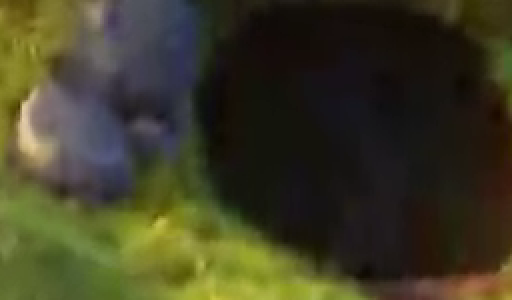
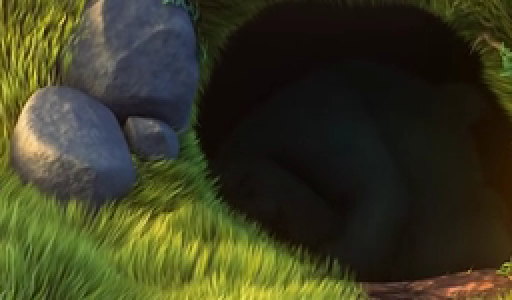
Drag to wipe between them. Same frame five seconds in, same 256 by 150 pixel crop magnified 2x. The rocks lose their edges into flat quantised blocks and the grass smears into blotches once the encoder no longer has the bits to describe the texture.
Two things make blocking worse, and they compound. Fine, high-contrast detail, grass, gravel, text, needs more bits to describe than a flat sky does, so it is the first thing to go once bits run short. Motion makes it worse again: a block the motion search cannot match well already costs more than an ordinary one, so it is already closer to running out of budget before quantisation even starts. That is why blocking shows up first in the busiest corner of the busiest scene in a clip, not spread evenly across the frame.
Colour takes a separate, earlier cut. Most encoders throw away three-quarters of the colour resolution before any of the above even starts, covered in chroma subsampling, and why red text goes fuzzy. And how efficiently a codec spends the bits it does keep, how much detail survives at a given file size, is mostly down to which codec it is: see H.264, HEVC, VP9 and AV1 compared for what actually changes between them.
Common questions
Does changing the container affect any of this?
No. Everything above happens to the video stream, and the container is just what holds that stream. See codec vs container for what a container swap does and does not touch, and why it finishes in a fraction of a second when it works.
Does a higher resolution always compress worse?
Only above a certain bitrate. Our bitrate measurements found that under about 2.5 Mbps, a 720p encode of the same clip scored higher on VMAF than the full 1080p version, because 1080p had too many pixels to describe on that budget. More pixels only pay for themselves once the bitrate can afford them.
Why does my screen recording compress so much smaller than a video I filmed?
Because most of a screen recording is unchanged from one frame to the next: the same window, the same background, the same static text, with only the cursor and a few pixels of UI actually moving. That is close to the frozen-frame end of the table above, not the real-motion end, so the encoder spends almost its entire budget on the small part of the frame that changes.
Is there a keyframe interval I can set in FileFlip?
No, and that is worth saying plainly. FileFlip's Bitrate control under Advanced options changes how many bits the encoder gets, not how often it plants a keyframe. If you need a specific GOP length for a streaming pipeline or a broadcast spec, a dedicated encoding tool is the right call, not a browser-based converter.
Convert between them
FileFlip converts MOV to MP4 and MP4 to WebM in your browser, on a WebAssembly build of FFmpeg. Nothing is uploaded, there is no account, and when the codec inside already fits the destination container, the MOV to MP4 conversion is a stream copy rather than a re-encode, which is why it finishes almost instantly regardless of how busy the footage is.
For the format details, see the MP4, WebM and MOV format references.
How we measured this
- Source clip: the 10-second, 1920x1080, 30 fps H.264 Big Buck Bunny segment (Blender Foundation, CC BY 3.0) used across our video posts, fetched with
pnpm blog:corpora. - Frozen arm: the clip's first frame, extracted as a PNG and held for 10 seconds at 30 fps and the source resolution, then encoded with the same settings as the real-motion arm at each CRF.
- CRF ladder:
ffmpeg -i clip.mp4 -c:v libx264 -preset medium -crf N -pix_fmt yuv420p out.mp4for N in 20, 23, 28, 32, run once each on the frozen source and the real clip. - Preset table: the same command with CRF fixed at 23 and
-presetswept through ultrafast, fast, medium, slow and veryslow, timed with a wall-clock measurement around eachffmpegcall. - Quality metric: VMAF via FFmpeg's
libvmaffilter against the appropriate source, the standard metric for video rather than SSIM, which is trained on human ratings and does not reward blur the way SSIM does. - Keyframe sizes:
ffprobe -show_entries packet=size,flags,pts_timeon the CRF 23 real-motion encode, split by the keyframe flag. - Artefact figure: frame extracted at 5 seconds from the source and from a CRF 46 re-encode of the same clip, cropped to 256x150 pixels at the same offset and magnified 2x with a point filter, which repeats pixels rather than blending them.
- Tools: FFmpeg 8.1.2 with libx264 and libvmaf, on macOS.
- Caveat: one animated clip is a single data point, and its motion is gentler than a sports broadcast or a fireworks show. A live-action source with more chaotic motion would widen the still-versus-motion gap further, not narrow it, since the mechanism runs the same way regardless of content. The preset timings are single runs on this machine; the absolute seconds will move with the CPU, the shape of the curve will not.