We split a baseline and a progressive JPEG of the same photo at 25% of their bytes and decoded only what had arrived. Baseline showed a sharp strip of sky and roofline over a gray block; progressive showed the whole photo, soft but complete. Across the 12-image Kodak set, progressive also came out smaller than baseline at every quality above 55, by a median of 3% at quality 85 and 5% at quality 95, at identical SSIM.
Should you use progressive or baseline JPEG?
Use progressive when:
- The file gets downloaded over the open web: a product photo, a blog image, anything a browser fetches before showing it. Convert PNG to PJPEG and FileFlip writes a real multi-scan progressive file.
- The connection is slow or flaky, where a blurry full preview beats a sharp sliver of the top.
- Quality is set above 65 or so, which is where the size saving shows up.
Use baseline when:
- Something downstream only reads a single sequential scan: an old embedded viewer, a receipt printer, a device you cannot update. Convert PNG to JPG for the plain, single-pass file.
- The image gets decoded on tight memory, where holding the whole frame across several scans is the wrong trade.
- Quality is low. Below about quality 55 the two formats land at almost the same size, so there is nothing to gain.
Progressive vs baseline JPEG at a glance
| Baseline | Progressive | |
|---|---|---|
| Standard | Sequential DCT mode, ITU-T T.81, 1992 | Progressive DCT mode, same spec |
| Decode order | Top to bottom, one pass | Whole image, several increasingly detailed passes |
| Pixels after full download | Reference | Identical, measured |
| Size at quality 85 (measured) | 75 KB median | 73 KB median, 3% smaller |
| FileFlip output format | JPG | PJPEG |
What is the difference between progressive and baseline JPEG?
Both are the same lossy JPEG compression, arranged into a different number of scans. A baseline file has exactly one: the encoder writes each 8x8 block's quantized DCT coefficients once, left to right and top to bottom, so a decoder fills the picture in the same order the bytes arrive. A progressive file spans several scans instead. The first covers only the low-frequency coefficients, the ones that carry rough shape and color, for the entire image. Each scan after that adds higher-frequency detail or extra bits of precision to the same frame, a technique the standard calls spectral selection and successive approximation. Because every scan touches the whole picture, a decoder has something to draw for the full frame after the first one, long before the file finishes arriving.
Why does progressive JPEG look blurry before it looks sharp?
Because its early scans carry only coarse data for the whole picture, not fine detail for a slice of it.
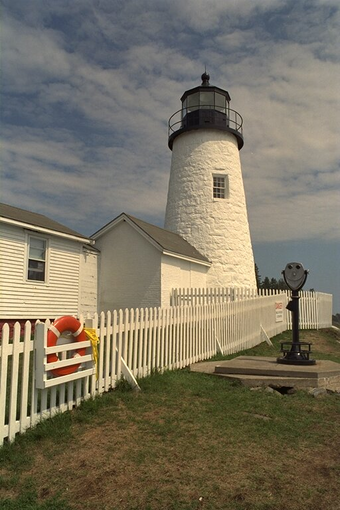
We took one photo, encoded it as a baseline JPEG and as a progressive JPEG at quality 85, then truncated each file to the first 25% of its own bytes and decoded whatever that partial file would yield. The comparison below is that exact result.
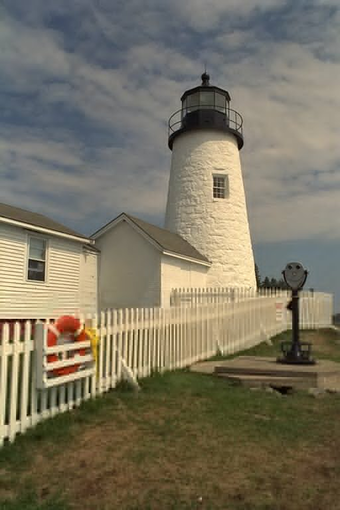
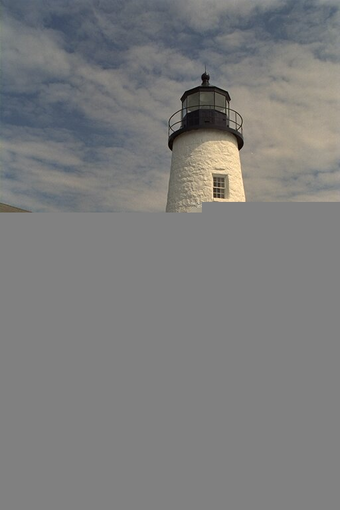
Drag to wipe between them. Same photo, same quality setting, same fraction of the file arrived; only the scan order differs. Baseline has finished the sky and the top of the tower and has nothing for the rest. Progressive has a full, slightly soft frame.
The rest of a progressive download just adds detail to a picture that is already whole, rather than adding new picture to one that is half-missing.
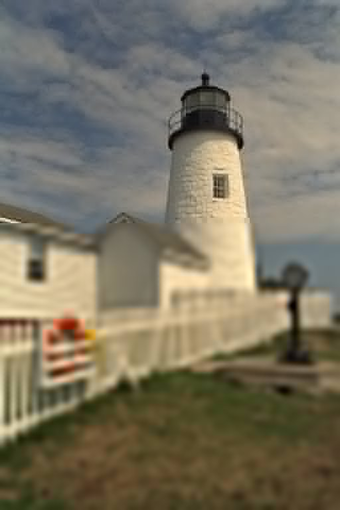 10% downloaded
- 25% downloaded
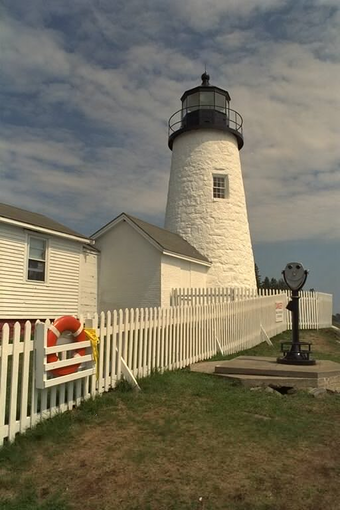 50% downloaded
 100% downloaded
Every frame is the same file, stopped at a different byte count and decoded as-is. It sharpens as more scans arrive; it never fills in from an empty region the way baseline does.
Is progressive JPEG smaller than baseline JPEG?
At typical web quality, yes, by a small and growing margin. Below quality 55 it is close to a wash.
We encoded the 12 Kodak images to both formats at ten quality settings with ImageMagick and measured SSIM against the uncompressed source. Because a progressive file holds the same coefficients as a baseline one, the two curves sit on top of each other: at every quality we tested, baseline and progressive land on the exact same SSIM, to four decimal places. Only the byte count moves.
| Quality | Baseline size | Progressive size | Difference |
|---|---|---|---|
| 30 | 24 KB | 25 KB | 4% bigger |
| 50 | 35 KB | 35 KB | About even |
| 70 | 48 KB | 48 KB | 1% smaller |
| 85 | 75 KB | 73 KB | 3% smaller |
| 95 | 181 KB | 172 KB | 5% smaller |
- Baseline75 KB
- Progressive73 KB, 3% smaller
Progressive's saving comes from giving each scan its own Huffman table tuned to that scan's data, rather than one table for the whole file.
Treat 3% as a typical gain at quality 85, not a promise: across the 12 images the saving at that quality ranged from 1% to 6%, and at quality 50 seven of the twelve images came out smaller as baseline files.
Does every browser and app support progressive JPEG today?
Yes, everywhere that matters. The exceptions are old or embedded decoders, not modern browsers.
Progressive decoding is not new technology being tested; the JPEG standard itself has defined it as one of the format's core modes since 1992. We opened our own test file directly in Chrome and it decoded and rendered at full size with no warning, which is what any current browser does. FileFlip's own PJPEG format reference notes the one real gap: a handful of old or embedded JPEG decoders, built before progressive scans were common, cannot read them at all.
What does progressive JPEG cost you?
A little decode work, never a byte of quality.
A baseline decoder can release each row of pixels as soon as its scan line arrives and forget about it. A progressive decoder has to hold the entire frame in memory across every scan, then keep rewriting it as later scans refine it, so it does more total work to reach the same final image. For a single web photo that difference is not something a person notices. It only starts to matter on a page decoding thousands of images at once, like a photo-processing pipeline, where the simpler baseline pass is cheaper per file.
When should you use progressive JPEG?
Mostly it will not matter enough to think about, and that is fine. The saving is a few percent, invisible unless you go looking for it, and FileFlip's plain JPG output already gives you a correct, compatible baseline file by default.
Reach for progressive on purpose in two cases. A large hero image or a photo gallery served to visitors on a slow or uncertain connection benefits from showing something whole quickly, which is the entire point of the format. And if you are already re-encoding a large batch of images and the extra 3 to 5% at quality 80 and up is worth collecting, switching costs nothing else. Outside those two cases, leave it alone.
Common questions
Can you tell whether a JPEG is progressive without opening it in an editor?
Yes. exiftool -EncodingProcess file.jpg prints "Baseline DCT, Huffman coding" or "Progressive DCT, Huffman coding". ImageMagick's own magick identify -verbose file.jpg reports it too, as Interlace: None for baseline or Interlace: JPEG for progressive. Both are read-only checks you can run on any file you already have.
Does converting a JPEG from baseline to progressive change its quality?
No. Baseline and progressive are the same lossy compression at a given quality setting; only the entropy coding that follows it changes. Measured across the Kodak set, a baseline and a progressive encode of the same source hit the same SSIM at every quality setting we tested, because they hold the same coefficients. Re-encoding an already-compressed JPEG still costs you the usual generation loss, the same as saving any JPEG a second time does, but that cost comes from the second lossy pass, not from switching scan orders.
Is PJPEG a different file format from JPG?
No. PJPEG is a JPEG file using the progressive DCT mode instead of the baseline one, still readable by anything that reads JPEG. FileFlip lists it as its own output option because the two need different encoder settings, not because they are different formats.
How do you make a progressive JPEG?
Pick PJPEG as the output format instead of JPG. Convert PNG to PJPEG and FileFlip writes a genuine multi-scan file through the same ImageMagick engine that powers the size measurements on this page, running as WebAssembly in your browser. Nothing uploads to a server, there is no account, and the file never leaves your machine. Drop a PNG in, choose PJPEG as the target, open Advanced options if you want to set quality, and the converted file is ready when the progress bar finishes. For a plain baseline file, convert PNG to JPG the same way.
How we measured this
- Corpus: 12 images from the Kodak True Color test set, each a 768 x 512 uncompressed PNG.
- Encoder: ImageMagick 7.1.2-28, invoked as
magick input.png -quality N output.jpgfor baseline andmagick input.png -quality N output.pjpegfor progressive, which selects ImageMagick's native PJPEG writer. FileFlip runs the identical library compiled to WebAssembly via@imagemagick/magick-wasm. - Size and SSIM:
pnpm blog:bench-image /tmp/fileflip-corpora/image jpg pjpegencodes both formats across ten quality settings and measures SSIM with FFmpeg'sssimfilter against the uncompressed source, the same script and method the WebP and JPG measurements on this site use. - Partial-decode figures: one Kodak image encoded at quality 85 to both formats, truncated with
head -cto 10%, 25%, 50% and 100% of its own byte count, then decoded as-is withmagick, which reads a truncated JPEG and fills anything it could not decode with gray rather than failing. - Caveat: the size saving is a median over 12 images and moves with image content; a busier photo with more high-frequency detail generally has less to gain from separate Huffman tables per scan than a smoother one does.
The benchmark script is in the repository at apps/nextjs/scripts/benchmark-image-encoders.mjs and reproduces these numbers directly.